I have talked to many of our Hamilton colleagues who are working on completing their Discovery Education Network Star educator applications.
I know May is a killer time of year for teachers to find time to anything above the assessing and grading and all of the other clerical work, but here is an easy way to accomplish your "event" portion of the process. All you need to do is bring one idea with you to lunch. It can be something you discovered on your new computer, some curriculum idea with Discovery Streaming, or anything else that will help your fellow teachers. Tell everyone at lunch and you have accomplished that section of the process.
Here is a link back to Mike Bryant's blog with a downloadable step-by-step set of instructions.
Jump to the application section here.
In case you need extra motivation and are still wondering if it is really worth it, take a look at the recent opportunity that STARS in California had with Bill Nye and Buzz Aldrin.
CA STARS Leave Earth with NASA and Buzz Aldrin
Great opportunities, a tremendous amount of resources, and a network of amazing other teachers full of ideas are all waiting. Just take a few minutes and make it happen.

Thursday, May 15, 2008

Tuesday, May 13, 2008
New York Times Special: Guided Tour of your Body

The New York Times has organized all kinds of interactive online activities into an index it is calling "A Well: Guided Tour of Your Body".
Linked sites include offerings from National Geographic, American Dental Association, and other scientific outlets.
These activities would be great for biology classes or anyone teaching health or body systems.
Making Office Documents Compatible
When you use Microsoft Office '08 on a Mac, you have to pay special attention to the format your document saves as.
By default, Office for Mac files will save with an "x" at the end of the typical extension. Instead of just .doc for a Word document, the new extension is .docx. The same is true for the rest of Office. .xls is now .xlsx and .ppt is now .pptx.
This causes problems if you try to move the files to a computer with an older version of Word, or any other Office application. Those programs can't run the file and you get a bunch of garbage up on your screen. You cause the same frustration when you email the files with the "x" at the end of them to someone with an older version of Office.
Save yourself and your recipients the headaches by doing a "Save As" and changing the format.
You always have the option to save in the older format. All you have to do is click the drop-down format menu and choose "Word (or whatever app. you are using) 97-2004 Document .DOC.
This takes aways the X and the headaches.
Click the picture below for a bigger look.
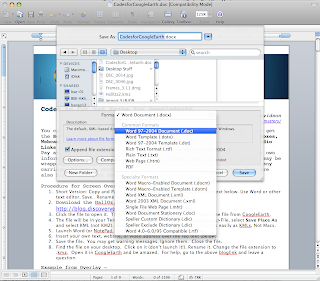
By default, Office for Mac files will save with an "x" at the end of the typical extension. Instead of just .doc for a Word document, the new extension is .docx. The same is true for the rest of Office. .xls is now .xlsx and .ppt is now .pptx.
This causes problems if you try to move the files to a computer with an older version of Word, or any other Office application. Those programs can't run the file and you get a bunch of garbage up on your screen. You cause the same frustration when you email the files with the "x" at the end of them to someone with an older version of Office.
Save yourself and your recipients the headaches by doing a "Save As" and changing the format.
You always have the option to save in the older format. All you have to do is click the drop-down format menu and choose "Word (or whatever app. you are using) 97-2004 Document .DOC.
This takes aways the X and the headaches.
Click the picture below for a bigger look.

Friday, May 9, 2008
And, you would be........?
Do you have an iChat id yet?
Are you on Twitter?
Do you have a Facebook account?
Use the comment section below so the rest of Hamilton can connect with you.
Are you on Twitter?
Do you have a Facebook account?
Use the comment section below so the rest of Hamilton can connect with you.
Thursday, May 8, 2008
Moving Your Old Bookmarks
Here are a couple of quick explanations of how to move your old bookmarks to your new computers.
In Safari, just go under FILE and click EXPORT BOOKMARKS.
Save the file to your desktop.
Transfer it to the new computer.
Start Safari on the new computer, under FILE click on IMPORT BOOKMARKS.
Locate that file you just transferred and you SHOULD be in business.
In Firefox, you go under BOOKMARKS and click on ORGANIZE BOOKMARKS.
A new window pops up called Bookmarks Manager.
Go to FILE and click on EXPORT.
Save the file somewhere easy to locate like your desktop.
Transfer the file to the new computer.
Start Firefox on the new computer.
Under BOOKMARKS click ORGANIZE BOOKMARKS once again.
Go to FILE and click IMPORT BOOKMARKS.
Locate that file you just transferred and you SHOULD be in business.
Good luck!
In Safari, just go under FILE and click EXPORT BOOKMARKS.
Save the file to your desktop.
Transfer it to the new computer.
Start Safari on the new computer, under FILE click on IMPORT BOOKMARKS.
Locate that file you just transferred and you SHOULD be in business.
In Firefox, you go under BOOKMARKS and click on ORGANIZE BOOKMARKS.
A new window pops up called Bookmarks Manager.
Go to FILE and click on EXPORT.
Save the file somewhere easy to locate like your desktop.
Transfer the file to the new computer.
Start Firefox on the new computer.
Under BOOKMARKS click ORGANIZE BOOKMARKS once again.
Go to FILE and click IMPORT BOOKMARKS.
Locate that file you just transferred and you SHOULD be in business.
Good luck!
Anomymous Email Bag: The First Post
I asked and you answered the call. Now it is your turn to ask and my turn to answer our first submission to the Anonymous Email Bag.
1. O.K., all these passwords; which one do I use? Yesterday we used "training" for some, one was the funky number and letter combo to get to our e-mail and what about the special one I have that I want to keep and use on my new computer? It is all very confusing!
Think of your passwords as the keys on your keychain. In fact, Mac OS X keeps track of passwords in an application called "Keychain". You don't have to worry about that though. Just go with the idea. On your keychain you have a key for the house, a key for the car, a key for the other vehicle, and a bundle of school keys. Your passwords are like those keys. You have many different ones for the things you want to keep unauthorized people out of, like your email or your server account.
So, when you fire up your laptop, you have a user name and password combination that gets you into the machine. This happens to be the same as your HCS server user name and password because your computer will be talking to the server occasionally to sync files. That is one key on your keychain. You need a separate key to access school email. A different user name and password opens your building file server. To access our wireless network, you need a password. Each of those airports takes a different password. This keeps unauthorized people from milking our Internet or doing something malicious on our dime.
You will want to come up with some location, probably in a drawer you can lock, that has all of your different passwords. The more time you spend online, the more passwords you will generate. I can think of at least 35 I have: Google account, eBay, message boards, Facebook, Ning, the list goes on and on. One final point, be careful not to get into the habit of making them all the same. If a hacker were to get into a database and get your password you use for everything, it could get really ugly the damage he or she could do. Hope this clears up some of your confusion.
1. O.K., all these passwords; which one do I use? Yesterday we used "training" for some, one was the funky number and letter combo to get to our e-mail and what about the special one I have that I want to keep and use on my new computer? It is all very confusing!
Think of your passwords as the keys on your keychain. In fact, Mac OS X keeps track of passwords in an application called "Keychain". You don't have to worry about that though. Just go with the idea. On your keychain you have a key for the house, a key for the car, a key for the other vehicle, and a bundle of school keys. Your passwords are like those keys. You have many different ones for the things you want to keep unauthorized people out of, like your email or your server account.
So, when you fire up your laptop, you have a user name and password combination that gets you into the machine. This happens to be the same as your HCS server user name and password because your computer will be talking to the server occasionally to sync files. That is one key on your keychain. You need a separate key to access school email. A different user name and password opens your building file server. To access our wireless network, you need a password. Each of those airports takes a different password. This keeps unauthorized people from milking our Internet or doing something malicious on our dime.
You will want to come up with some location, probably in a drawer you can lock, that has all of your different passwords. The more time you spend online, the more passwords you will generate. I can think of at least 35 I have: Google account, eBay, message boards, Facebook, Ning, the list goes on and on. One final point, be careful not to get into the habit of making them all the same. If a hacker were to get into a database and get your password you use for everything, it could get really ugly the damage he or she could do. Hope this clears up some of your confusion.


Subscribe to:
Posts (Atom)


